

Meeting Interpretation
Troubleshooting
When the AI interpreter cannot join or nothing is interpreted, find the fix by the message on screen.
Based on the new UI, August 2026 · click any screenshot to enlarge.
※ Click any screenshot to enlarge.
When the AI interpreter cannot join the meeting
Find the message shown on screen in the table below to see the cause and the fix.
The message appears in two places
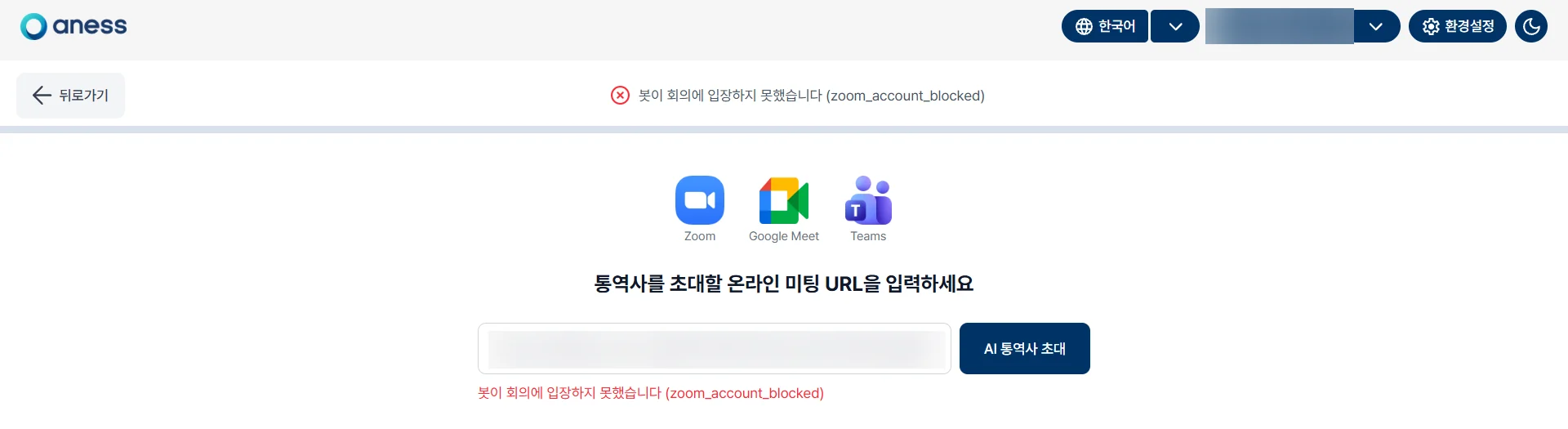 12
Note the code in brackets too. (Blank space in the middle has been trimmed.)
Cause and fix by message
| Message · code | Cause | What to do |
|---|---|---|
The meeting requires prior registrationzoom_registration_required | Zoom Registration is on, so every participant must register a name and e-mail before joining. The AI interpreter cannot complete that step. | Uncheck Registration when you create the meeting and invite with the new link. See 4. Meetings with registration turned on below for where to check. |
The meeting password is not correctzoom_password_incorrect | The link you pasted carries no password. This usually happens with a launcher link. | Paste the full link from Zoom’s [Copy Invitation]. See 5. Pasting the meeting link below. |
The host has not started the meeting yetzoom_waiting_for_host | The room exists but the host has not joined. | Start the meeting first, then click [Invite AI Interpreter]. |
Not admitted from the waiting roomtimeout_waiting_to_join_call | The waiting room is on and the host did not admit the AI interpreter in time. | Admit anessNote (Interpretation) when it appears in the participant list. You can also turn the waiting room off in the meeting settings. |
The host denied entry or removed the interpreterdenied_by_host bot_kicked_from_call | The join request was declined, or the interpreter was removed during the meeting. | Create a new meeting and invite again. If re-inviting keeps failing after a removal, see section 2 below. |
The meeting is lockedmeeting_locked | The host locked the meeting, so no new participant can join. | Turn off Lock Meeting under [Security], then invite again. |
The bot could not join the meetingzoom_account_blocked | The interpreter was removed with [Report to Zoom] checked in an earlier meeting, so Zoom is blocking that account from re-joining. | Follow sections 2 and 3 below. This is the most common case in this manual. |
| A bot connection error occurred (code in brackets) | A reason anessNote does not yet have wording for. The English code in brackets carries the cause. | Send us the code in brackets exactly as shown, ideally with a screenshot. |
Start by checking that the host has begun the meeting and that you pasted the full invitation link.
Removing the AI interpreter — clear [Report to Zoom]
If that checkbox is left on, the interpreter cannot be invited to any later meeting.
- 1Open [Participants] and click [More] next to anessNote (Interpretation).
- 2Choose [Remove]. Do not use [Report].
- 3In the dialog, clear the [Report to Zoom] checkbox first, then press [Remove].
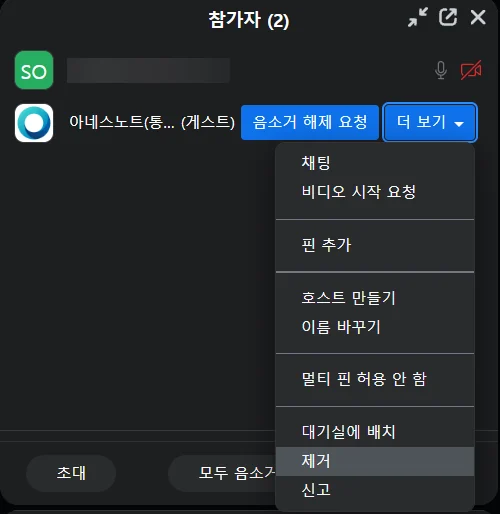 2
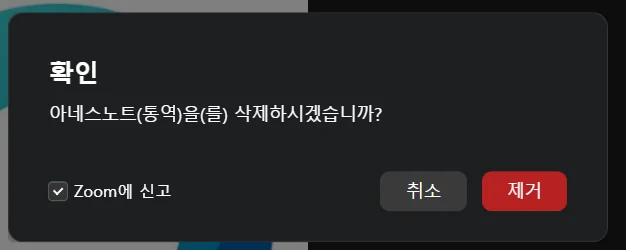 3
If the report screen has already opened
- 1Click [Don’t report] instead of [Submit].
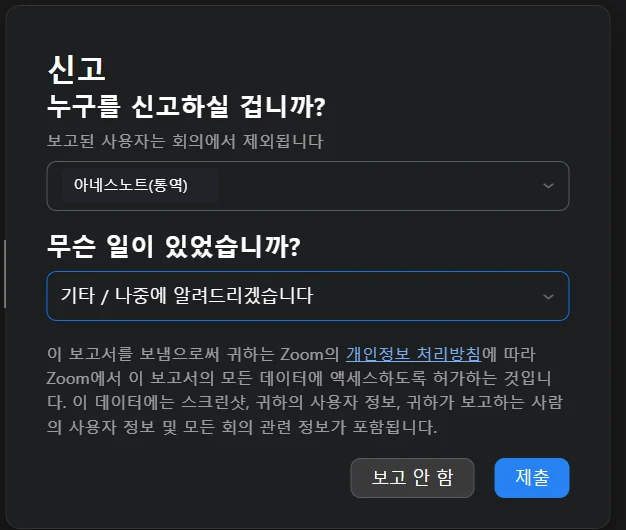 1
Re-inviting an AI interpreter you removed
Turn on one Zoom setting, then create a new meeting.
- 1Sign in to the Zoom website and go to [Settings] ▸ [Meeting] ▸ [In Meeting (Basic)].
- 2Turn [Allow removed participants to rejoin] on.
- 3End the meeting that is open and create a new one.
- 4Run [Invite AI Interpreter] again with the new meeting’s invitation link.
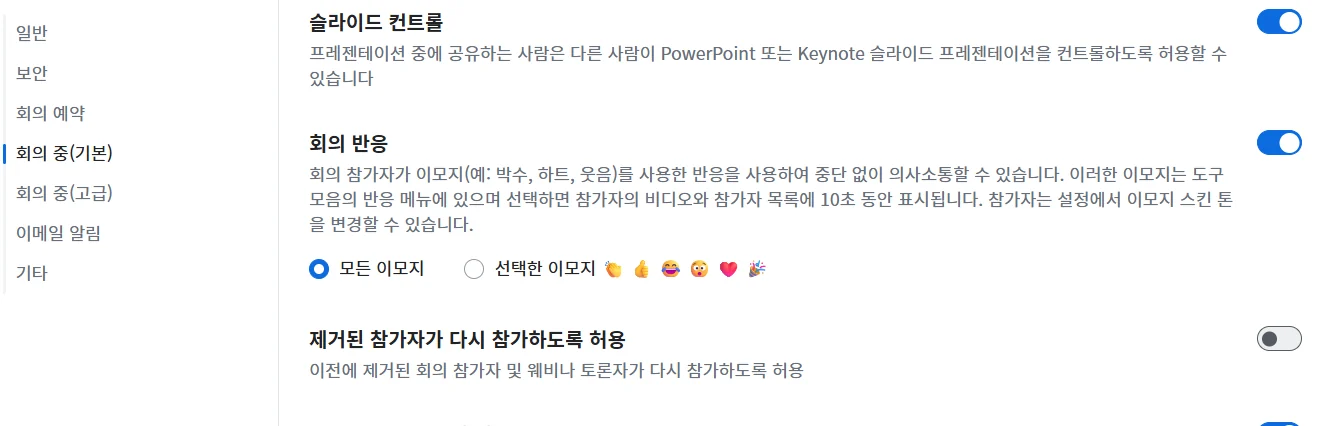 12
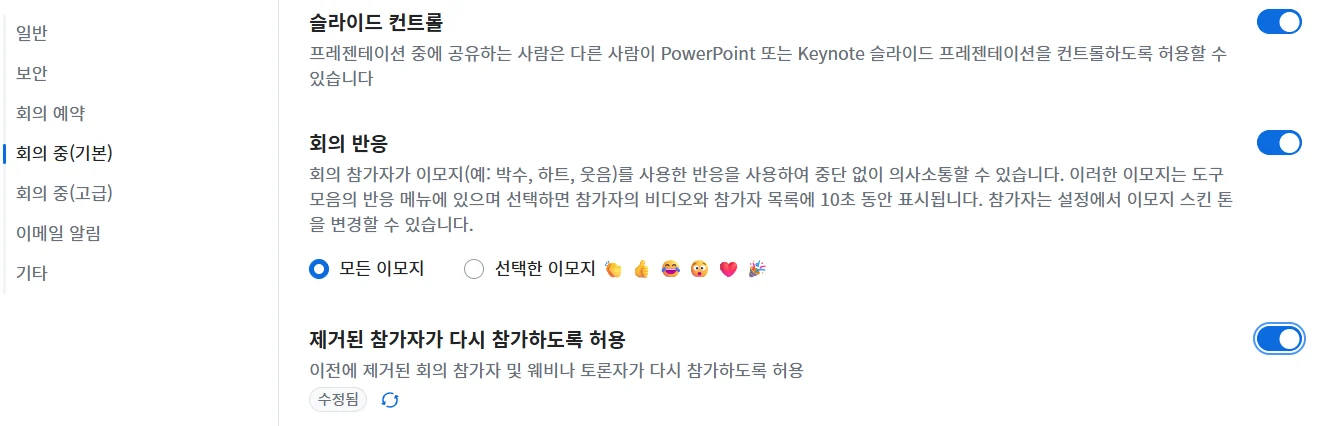
If the switch is greyed out, ask your Zoom admin to unlock it.
Meetings with registration turned on
With Zoom [Registration] on, the AI interpreter cannot get in.
Why it cannot join
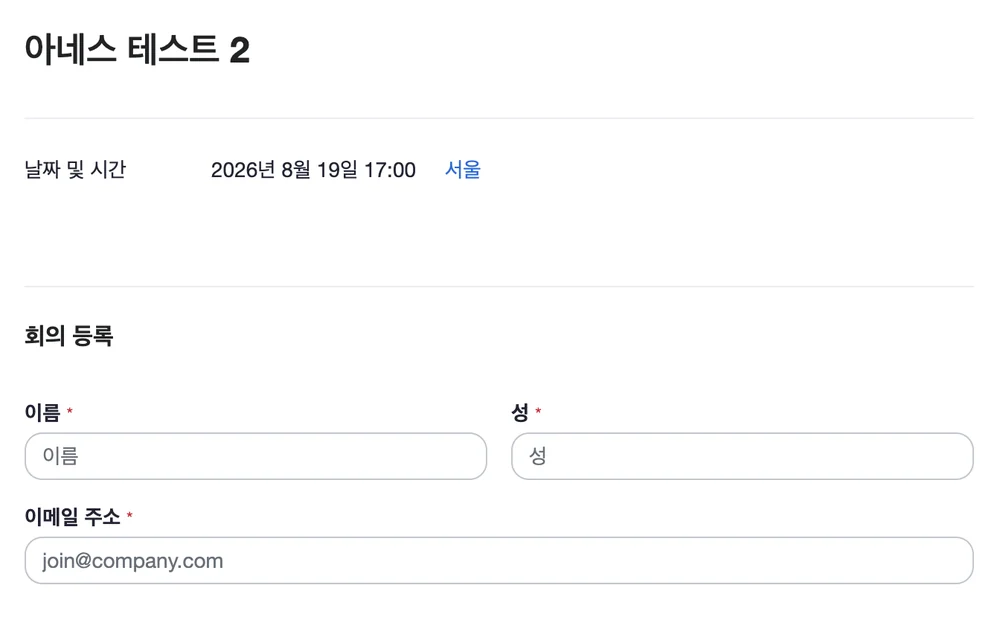
Where to check whether it is on
- 1On the Zoom website, open [Meetings] ▸ the meeting, then the [Registration] tab.
- 2If the [Registration] tab and Manage Registrants are there, registration is on.
- 3For a meeting you want interpreted, create it again with registration off.
Turning it off on an existing meeting does not change the link already sent.
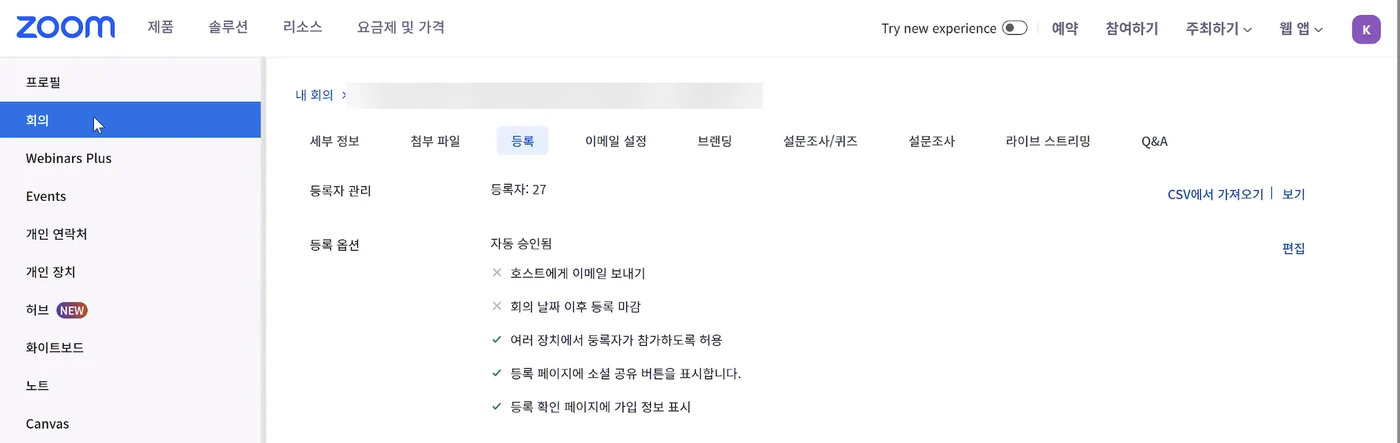 12
The audience receives the translation through a QR code or URL, so meeting registration does not apply.
Pasting the meeting link
For the same meeting, some link formats drop the password and the interpreter cannot join.
- 1Get the link from [Participants] ▸ [Invite] ▸ [Copy Invite Link] in Zoom.
- 2Paste it into the anessNote Video-Call Interpretation box and click [Invite AI Interpreter].
https://us05web.zoom.us/j/00000000000?pwd=…The full invitation link — it carries both the meeting number and the password (pwd).
https://us05web.zoom.us/launch/jc/00000000000A launcher link copied from the browser address bar. It has no password, so it fails on any meeting that requires one.
When nothing is interpreted, or the record is empty
The interpreter joined, but nothing comes out.
| What you see | Cause | What to do |
|---|---|---|
| The interpreter is in the meeting and shows as “Interpreting”, but not a single line appears. | The interpreter never attached to the meeting audio, although the screen looks normal. | Remove the interpreter (clear [Report to Zoom]) and invite it again. If it repeats, create a new meeting. |
| A meeting record was created but it is completely empty. | A record is created even when the interpreter fails to join. An empty one is the trace of a failed entry. | Check the message you saw against table 1, fix the cause and run it again. The empty record can be deleted. |
| The message flashed and disappeared before you could read it. | The toast closes by itself, and if several appear in quick succession the later one replaces the earlier. | The same text stays in the red line under the input box. |
| Interpretation will not start because the remaining time is insufficient. | The interpretation time on your plan has run out. | Check the balance under [Settings] ▸ [Plan] and contact your account manager. |
| In offline interpretation, the microphone is not detected. | The external microphone was not recognised, or the browser has no microphone permission. | Allow microphone access in the browser, then reselect the device under [Settings] ▸ [Features]. |
If none of this helps
Check the six items below, then contact us through Channel Talk (help.aness.ai) or at info@aness.ai.
- 1The platform you used — Zoom, Google Meet or Teams.
- 2The full error message, including the English code in brackets.
- 3The date and time it happened, to the minute.
- 4The shape of the link you pasted —
/j/or/launch/jc/. - 5Whether you were the host, and your Zoom plan (free, paid or corporate).
- 6A screenshot showing the whole screen with the message.