
User Manual
Meeting Interpretation
From logging in to running video and on-site meeting interpretation, step by step.
Based on the new UI, August 2026 · click any screenshot to enlarge.
Watch the video guideWalk-through of on-site and video-call interpretation↗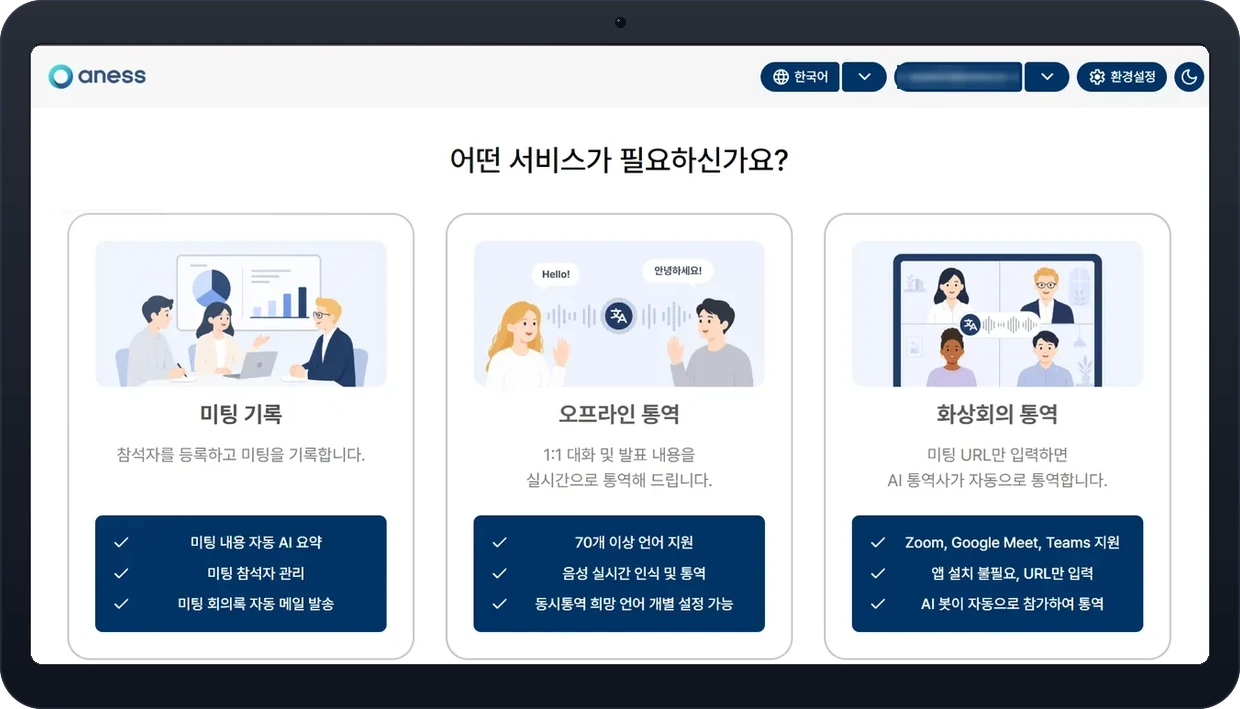
※ Click any screenshot to enlarge.
1
Getting Started
Log in with the account you were given, then open the service picker.
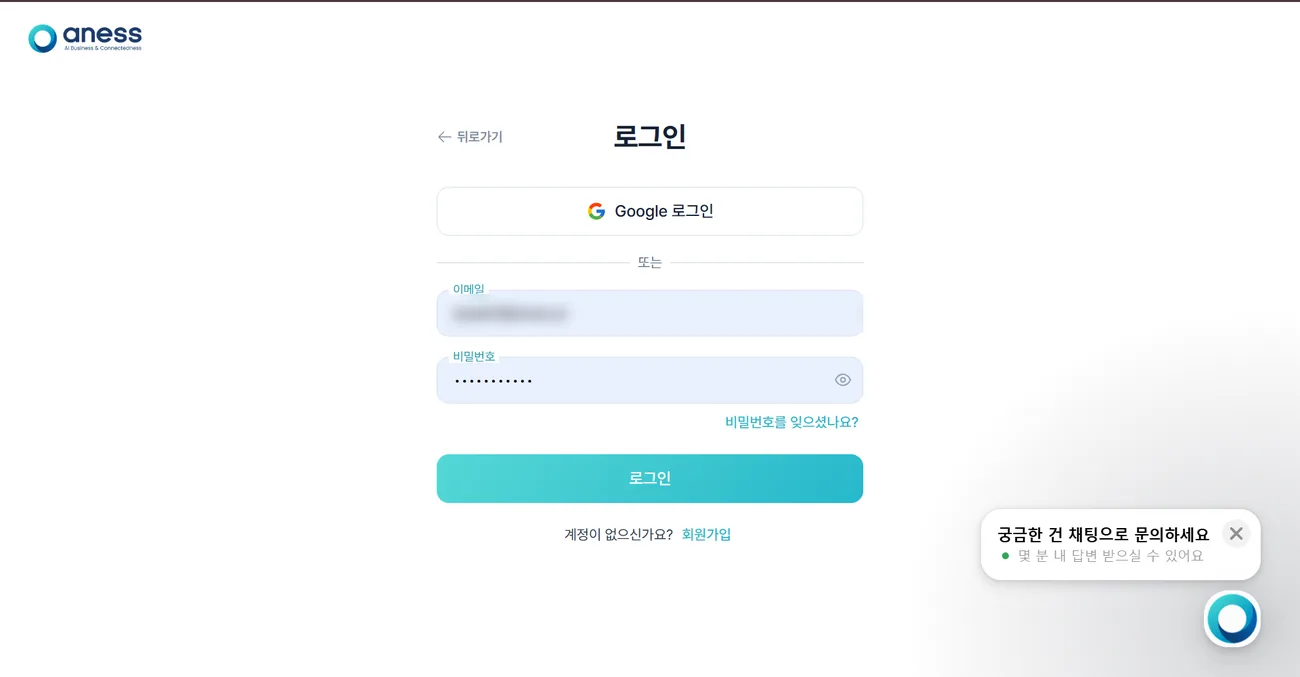
- 1Log in at aness.ai with the account you were given.
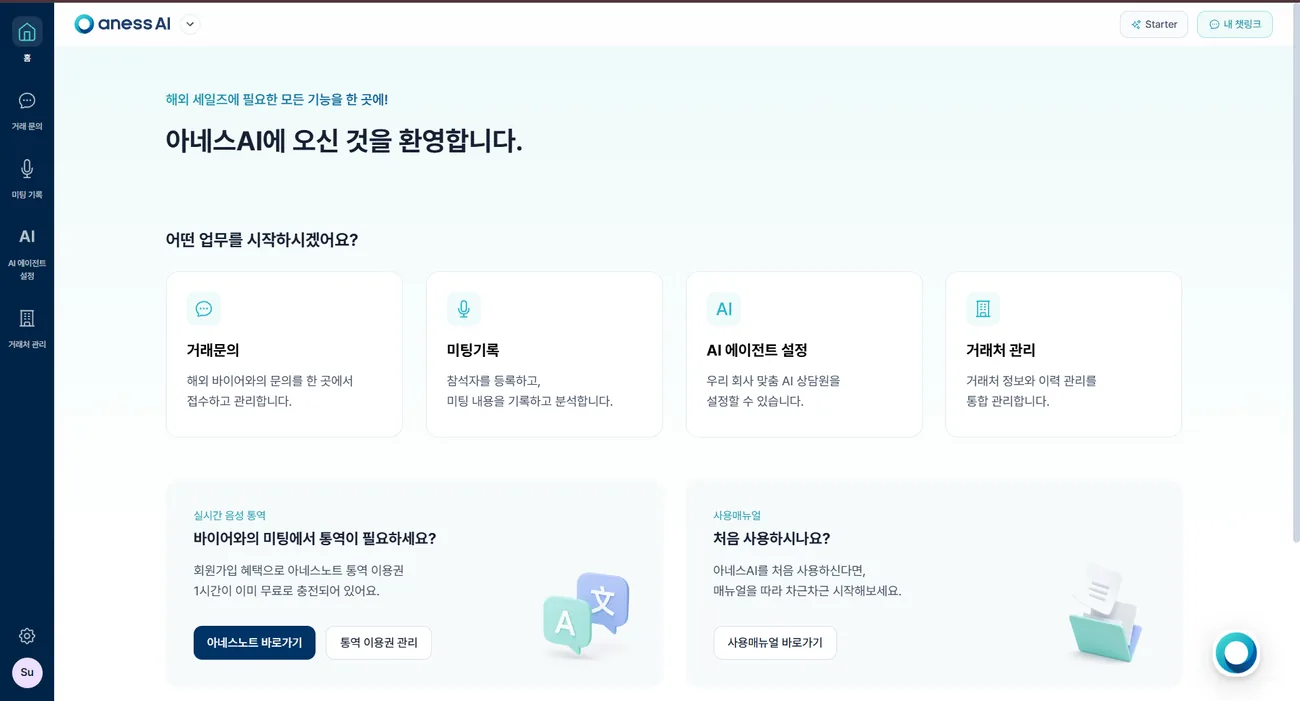
- 2On the anessAI dashboard, click [Open anessNote].
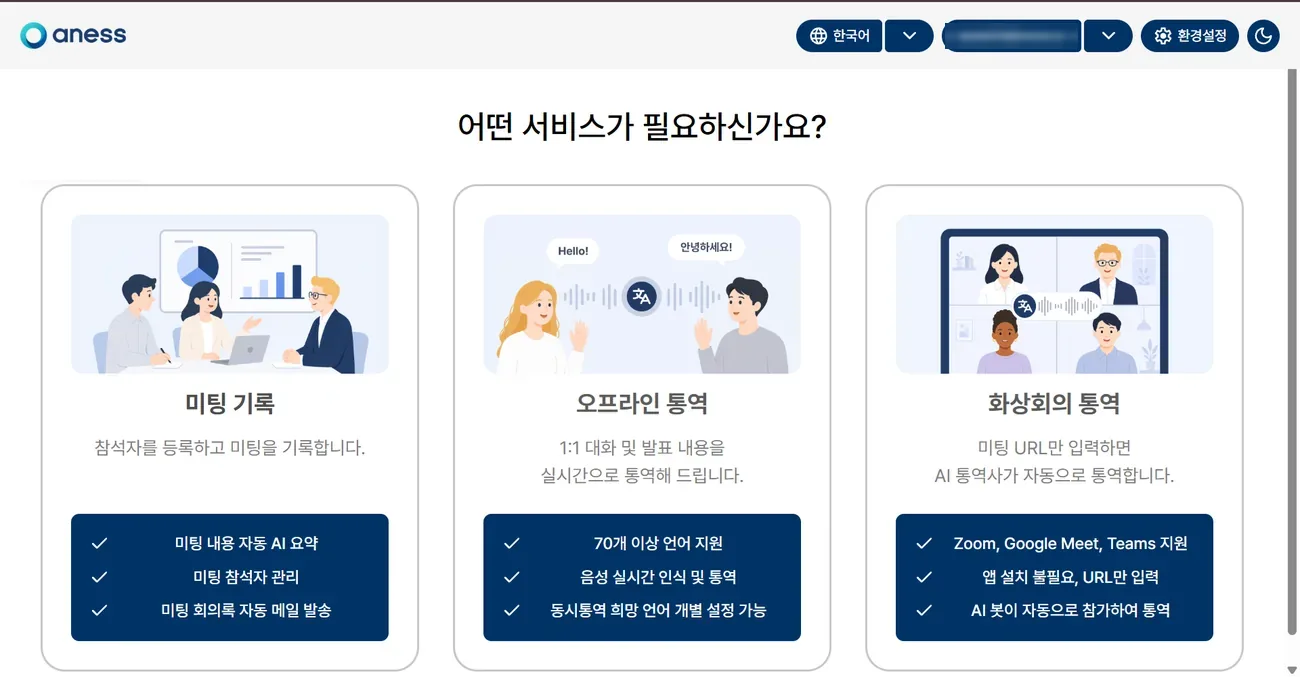
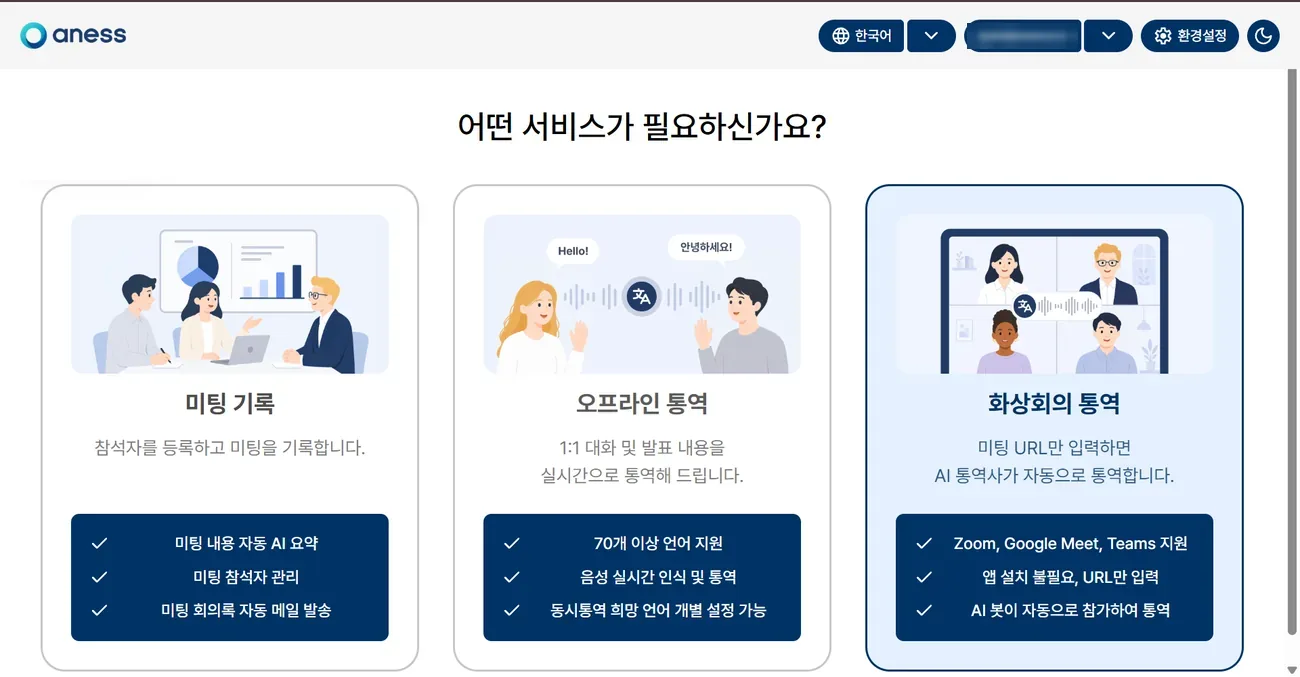
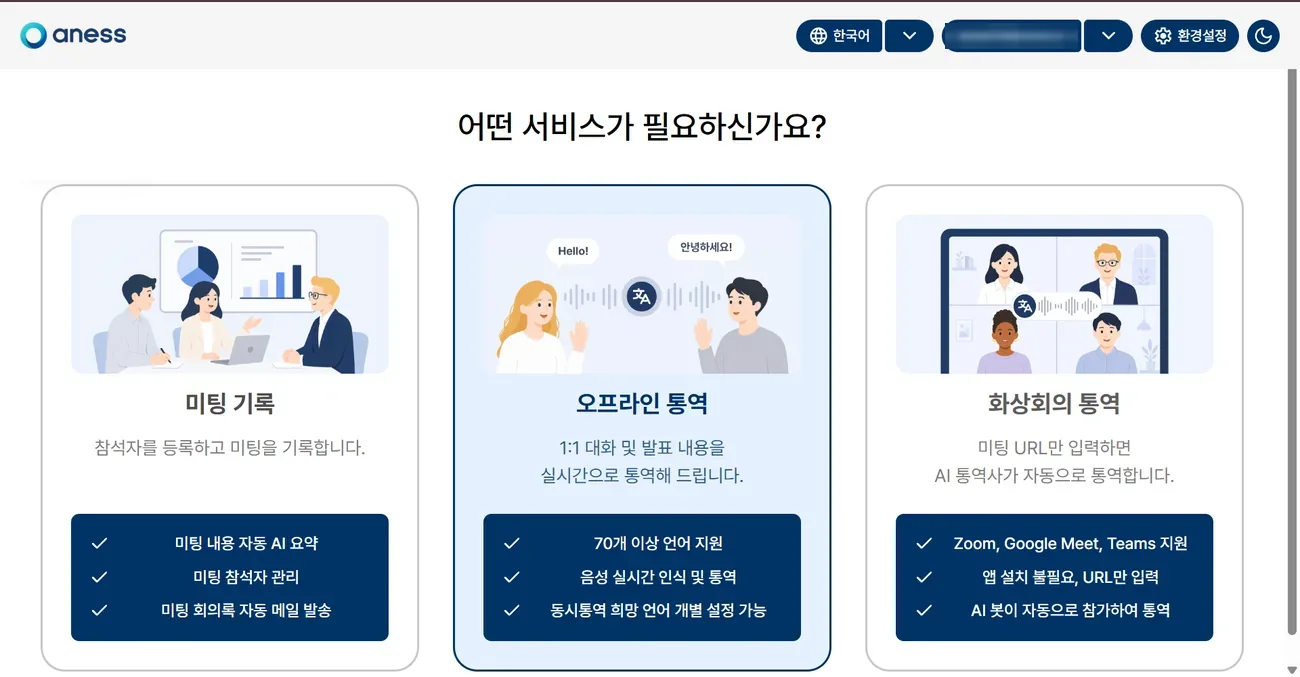
- 3Choose the service you need on the picker screen.
 1
 2
 3
NoteMeeting Records = attendees & minutes · Offline = on-site meetings · Video-Call = Zoom · Meet · Teams
2
Video Meeting Interpretation
Invite an AI interpreter into Zoom, Google Meet or Teams — and register the attendees.
Invite the AI interpreter
- 1Click [Video-Call Interpretation] on the service picker.
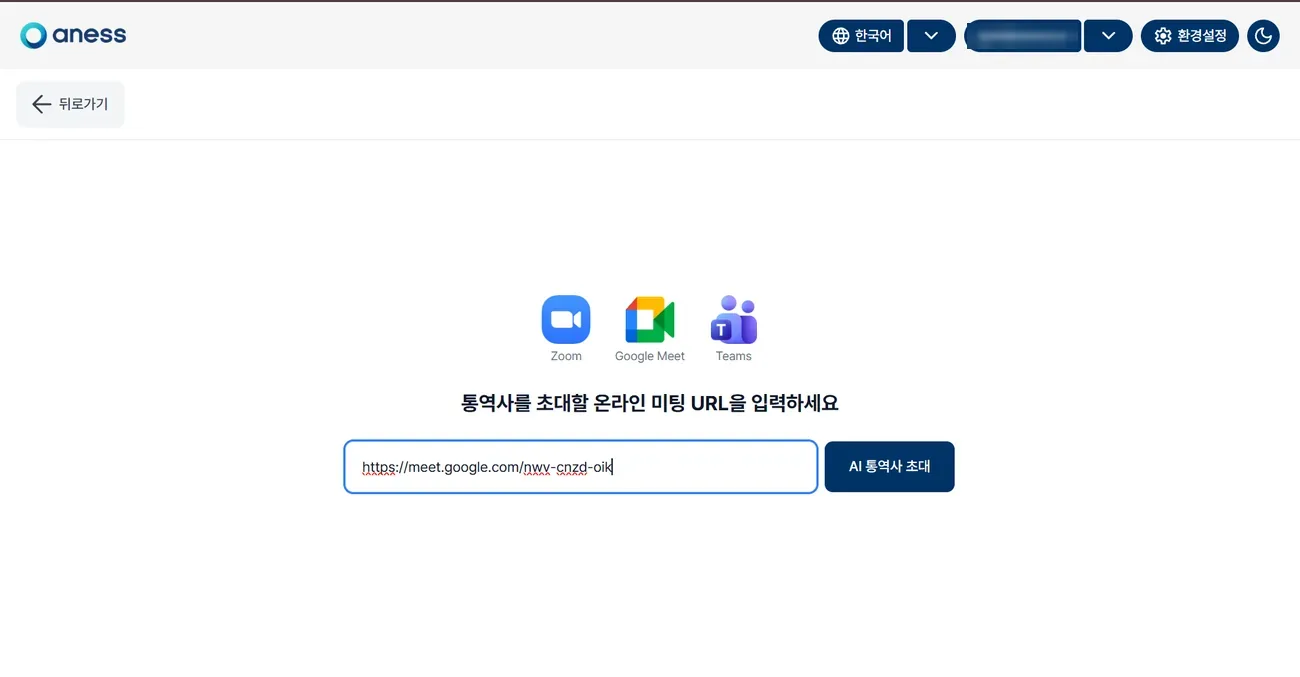
- 2Choose two languages, then paste the meeting URL.
- 3Click [Invite AI Interpreter] — the bot joins the meeting.
 1
 23
NoteWorks with Zoom, Google Meet and Teams — participants do not need to install anything.
The language screen is the same as for offline interpretation.
The language screen is the same as for offline interpretation.
Registering attendees — before or during the meeting
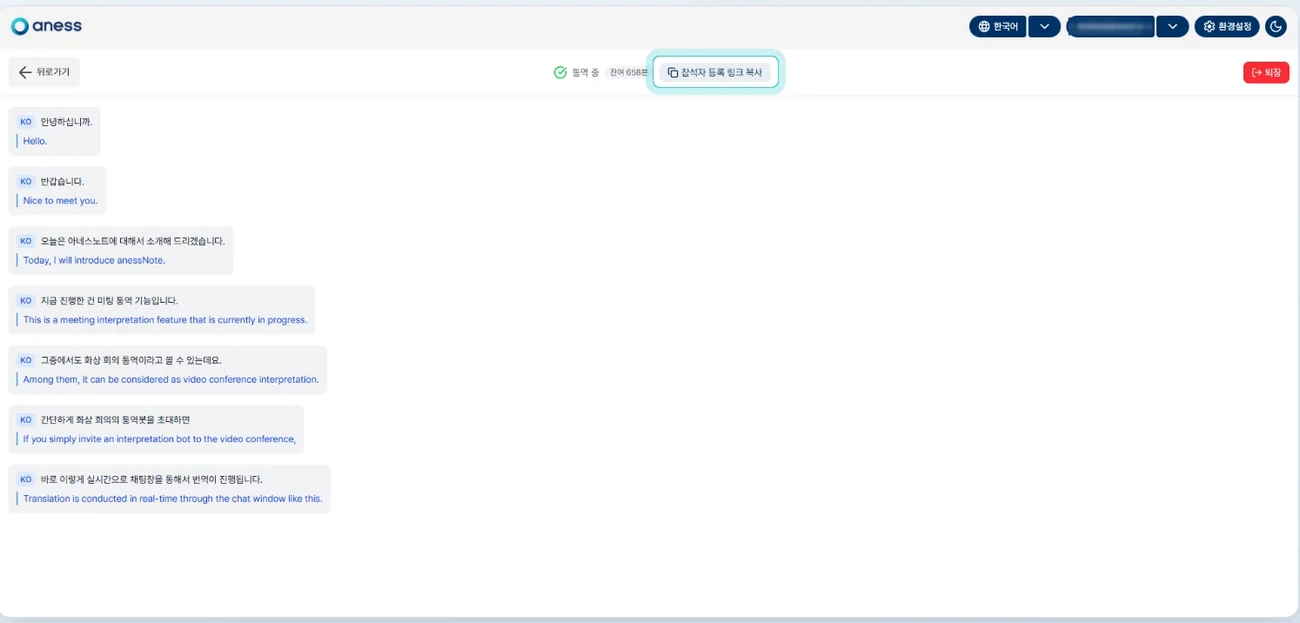
- 1Click [Copy attendee registration link] at the top of the interpretation screen and send the link to your attendees.
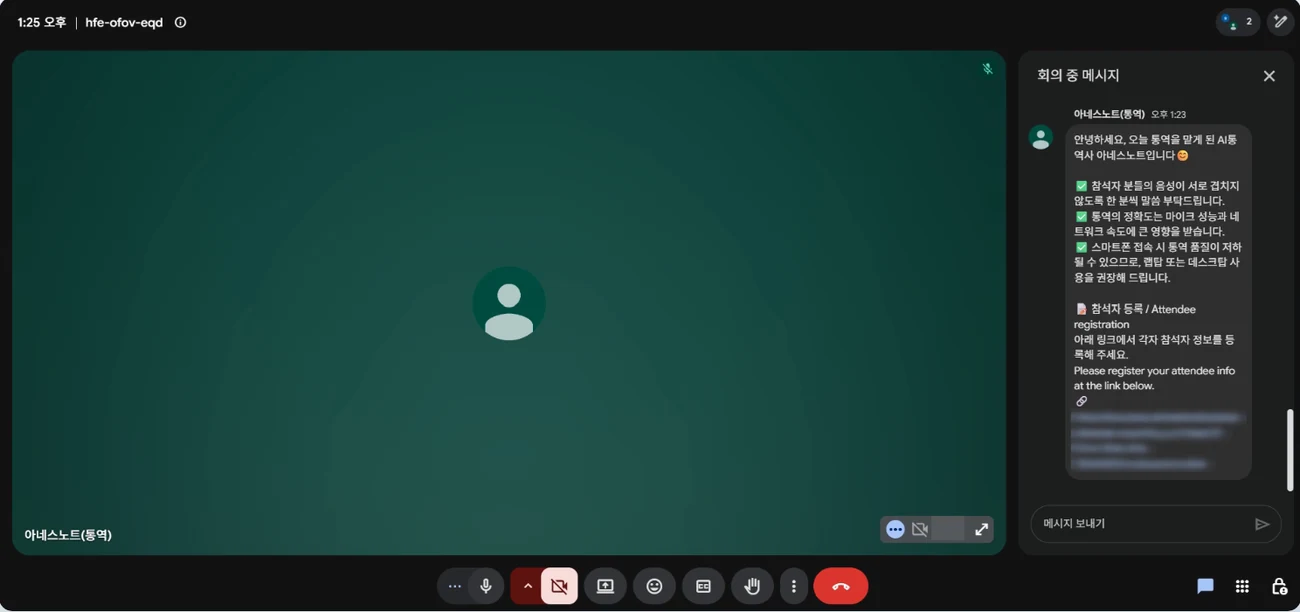
It works at any point, including while interpretation is running. - 2The AI interpreter also posts the same link in the meeting chat as it joins, so attendees can pick it up themselves.
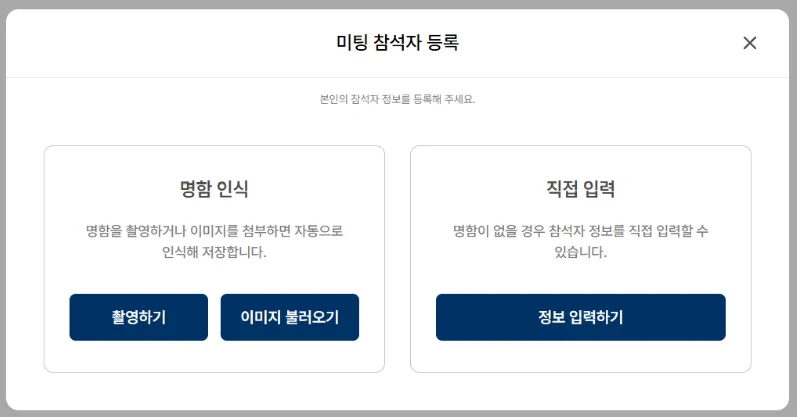
- 3Opening the link brings up the registration window — scan a business card with [Card scan], or type the details in with [Enter manually].
- 4What they enter flows straight into the meeting record in the anessAI dashboard.
 1
 2
 3
NoteOn-site meetings work the same way — the QR on the closing pop-up and the QR in the middle of the [Meeting record] screen.
Attendees can also be added afterwards from the anessAI dashboard.
Attendees can also be added afterwards from the anessAI dashboard.
Follow the interpretation, then leave
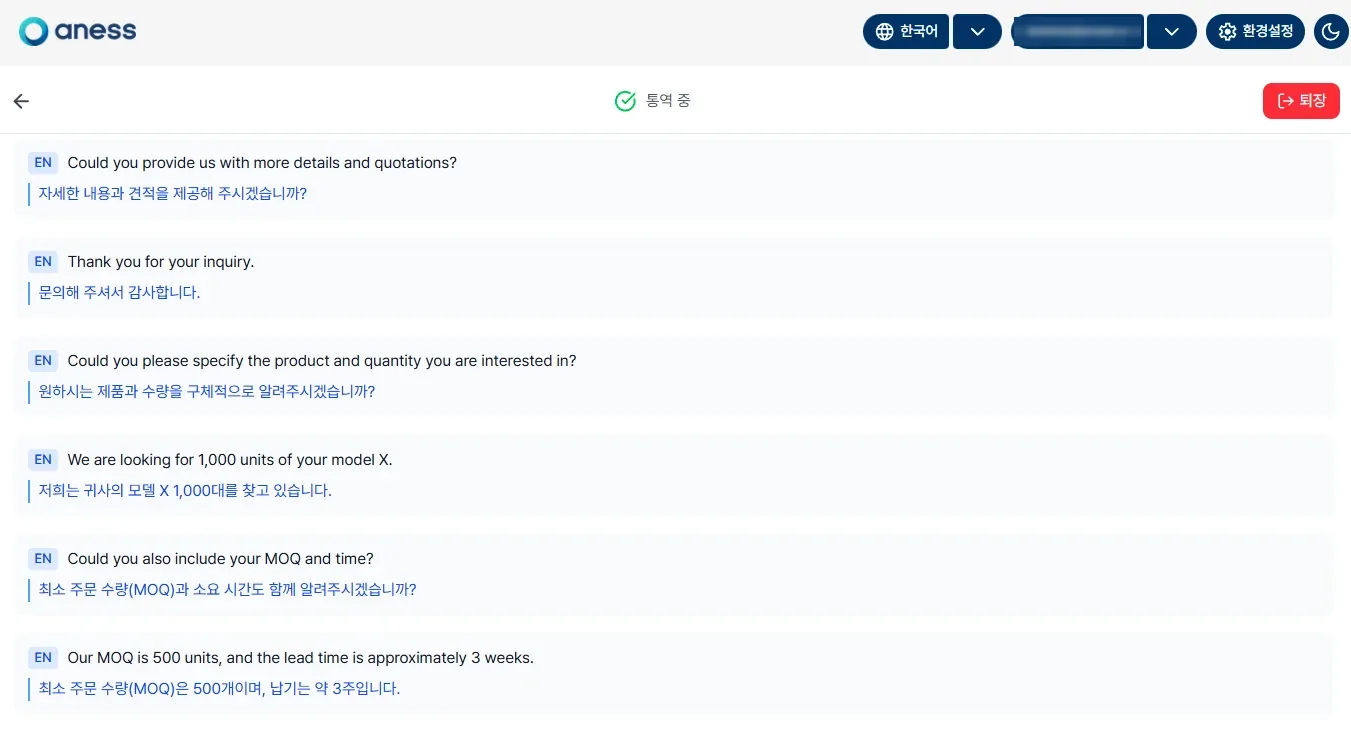
- 1Once the bot joins, every line is interpreted and shown in the meeting chat and on anessNote.
- 2When the meeting ends, click [Leave] at the top right to remove the AI interpreter.
 12
NoteClosing the browser instead of clicking [Leave] can delay the record on the dashboard by several hours.
Always click [Leave] when the meeting ends.
Always click [Leave] when the meeting ends.
CarefulWhen removing the bot from Zoom, always untick [Report to Zoom].
Leaving it ticked files a report against the AI interpreter account, and it will not be able to join your next meeting.
Troubleshooting ▸ 2. Removing the AI interpreter has the screens.
Leaving it ticked files a report against the AI interpreter account, and it will not be able to join your next meeting.
Troubleshooting ▸ 2. Removing the AI interpreter has the screens.
3
Offline Meeting Interpretation
Interprets live on-site conversations and presentations.
Choose the languages and start
- 1Click [Offline Interpretation] on the service picker.
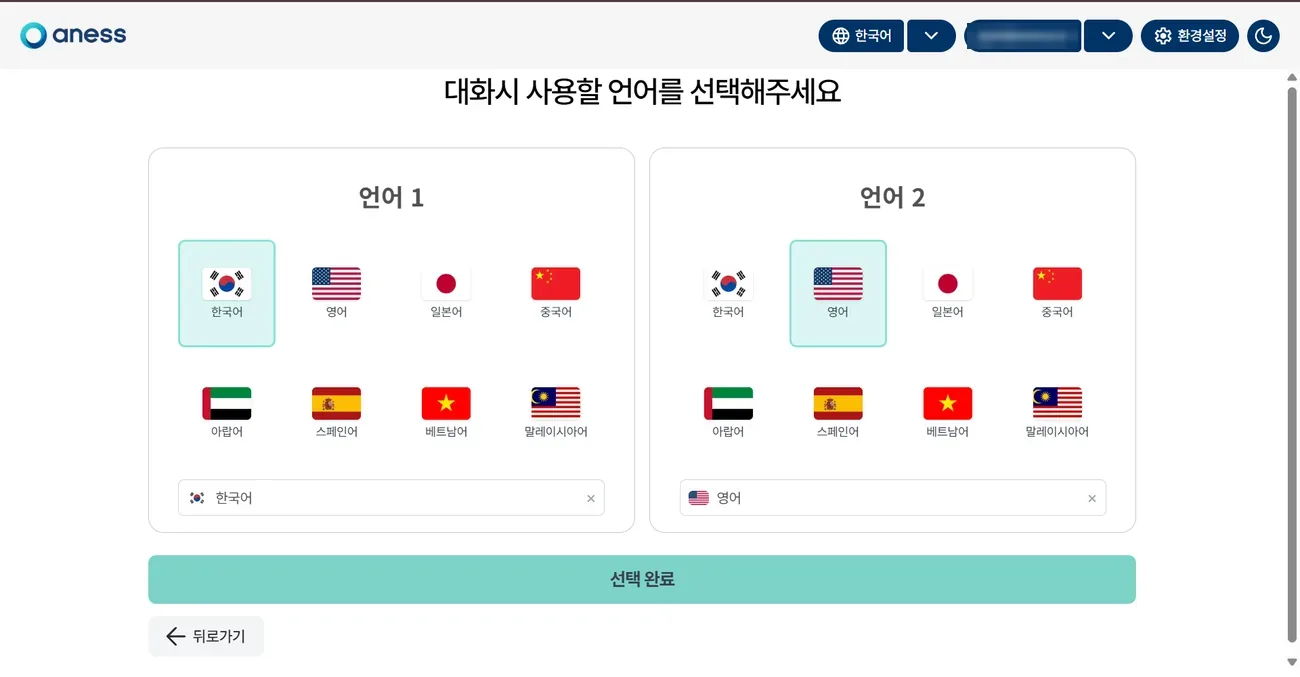
- 2Pick Language 1 and Language 2.
- 3Click [Confirm Selection] at the bottom.
 1
 23
NoteSave your usual language pair under [Settings ▸ Display] so you do not have to pick it every time.
Talk, then finish
- 1Start speaking once the microphone icon appears.
- 2Speech and translation appear side by side.
- 3Use [Pause] and [Start] to stop and resume.
- 4[End (Exit)] → [Send by Email] emails you the transcript and its translation as an Excel file.
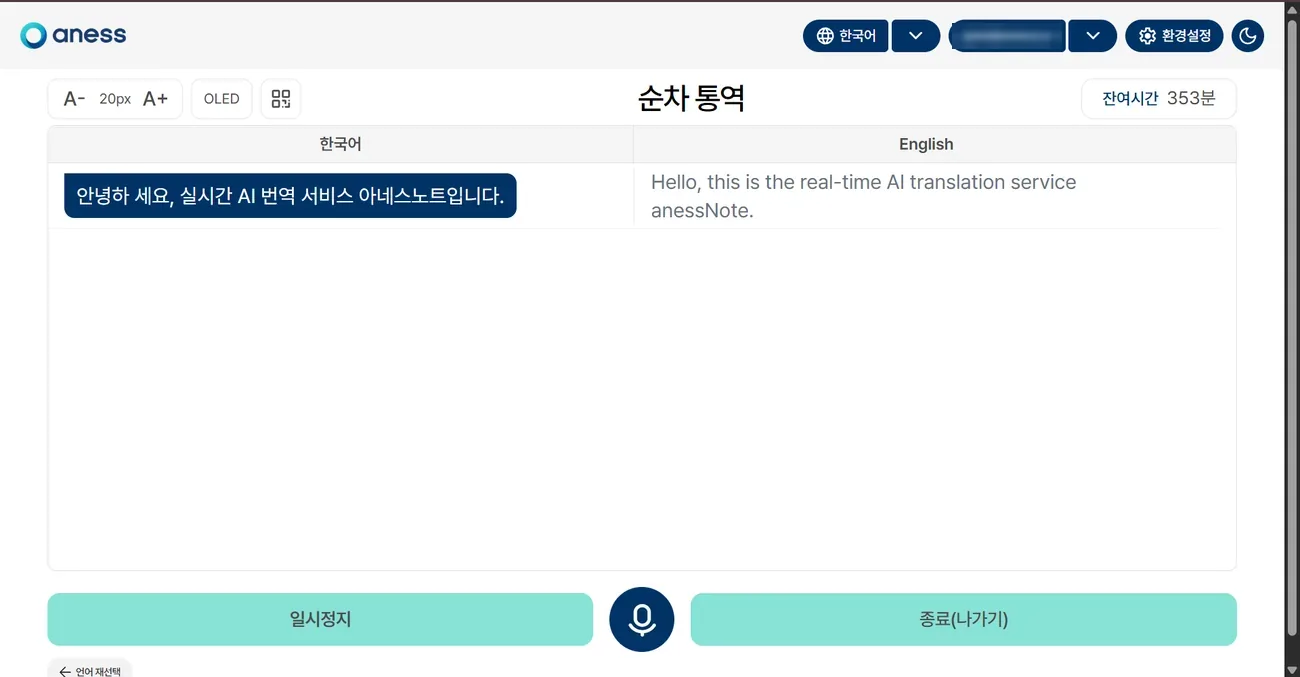 213
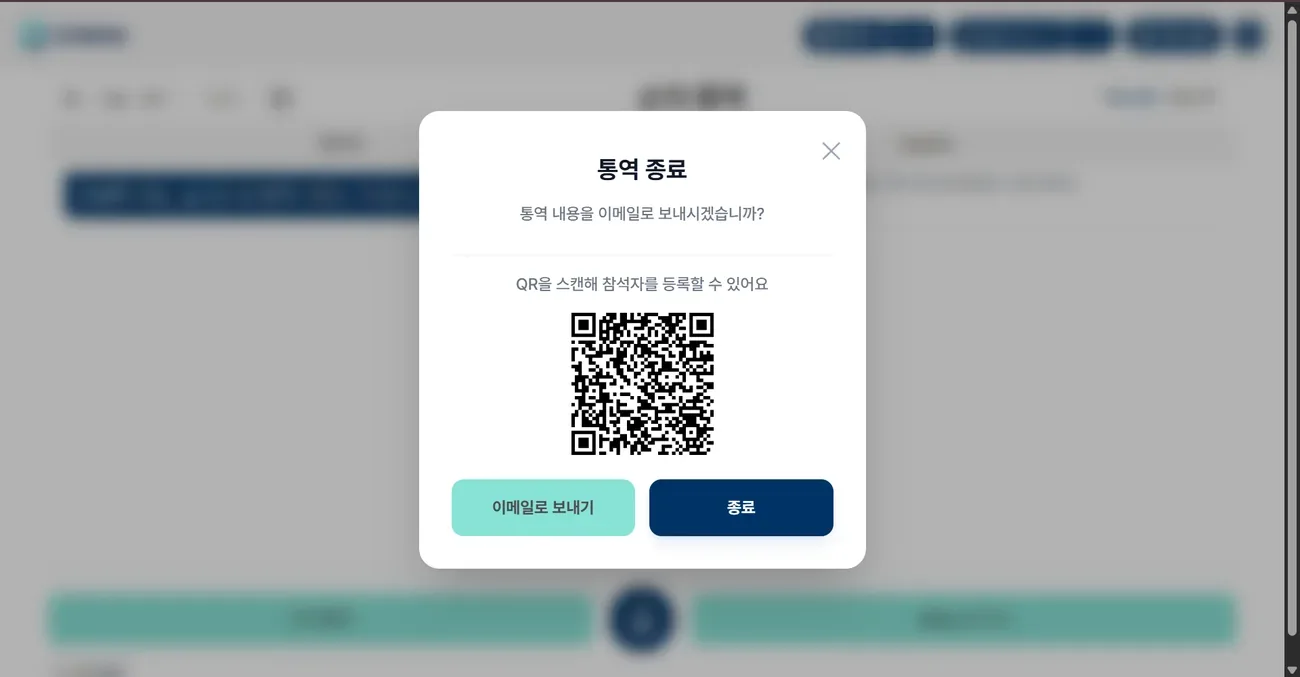 4
NoteUse A- / A+ at the top left for text size and check your remaining time at the top right.
You can also register attendees from the QR code in the closing dialog.
You can also register attendees from the QR code in the closing dialog.
4
Meeting Records
Register attendees, record the meeting, and get an AI summary automatically.
- 1Click [Meeting Records] on the service picker.
- 2Attendees scan the centre QR code to register as Seller or Buyer.
- 3Click [Start] to begin recording.
- 4Click [End (Exit)] when the meeting is over.
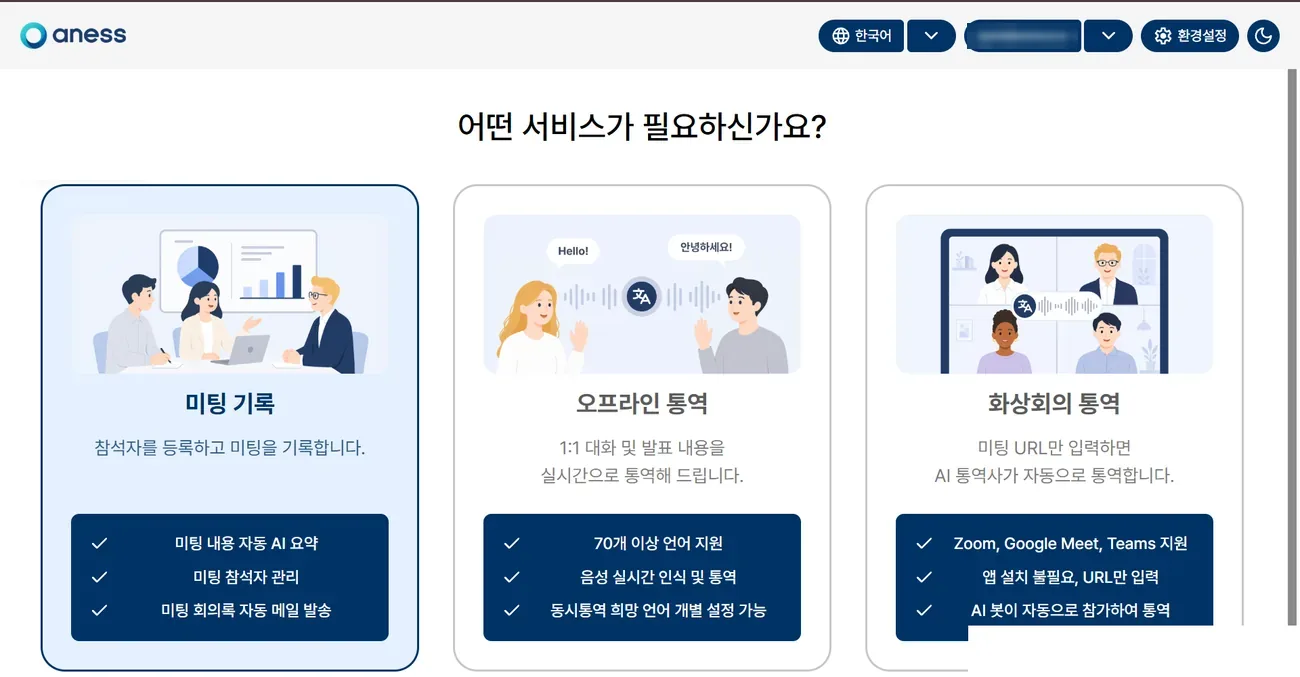 1
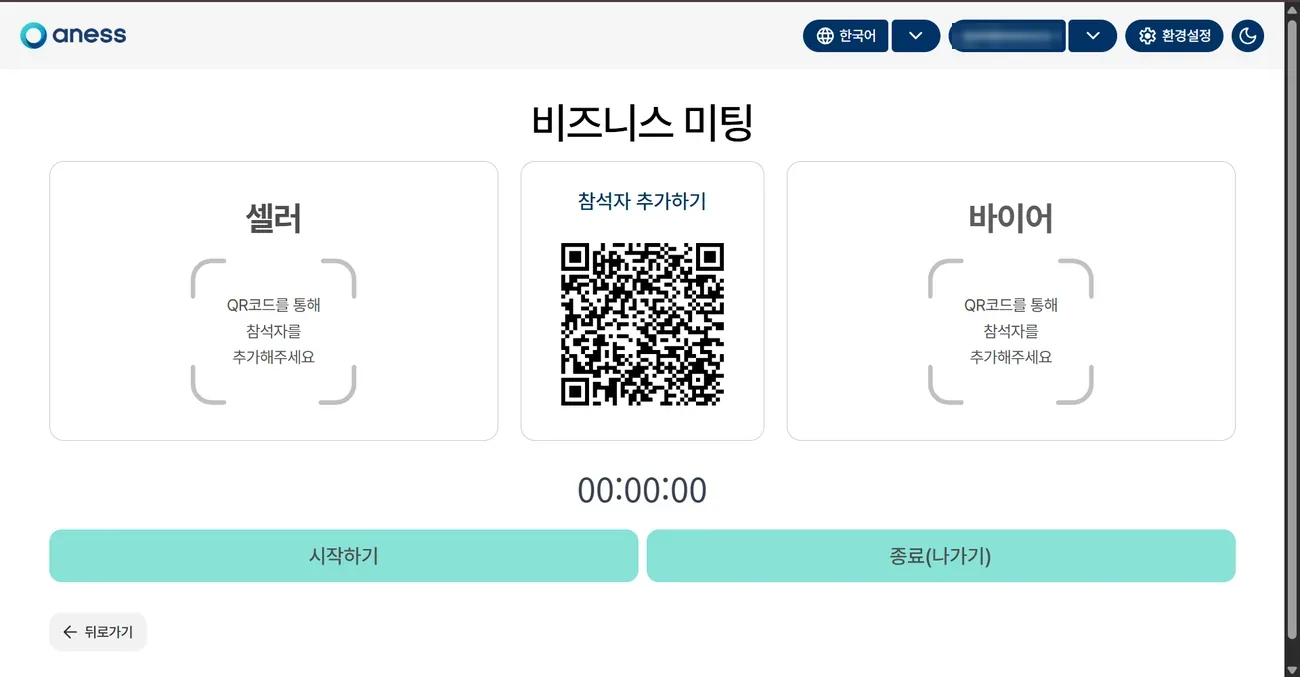 234
NoteScanning the QR on a phone fills in attendee details from a business card photo.
Records are saved to the dashboard with an AI summary.
Records are saved to the dashboard with an AI summary.
NoteFinished records are also available in the anessAI dashboard ▸ [Meeting records] — summary, key points, attendees and downloads on one screen. anessAI help — Reviewing interpretation records